Sync and back up
Your books live on this device. To have them on another, or to avoid losing them when you clear the browser, there are two different things and it pays not to mix them up: syncing and backing up.
Sync: the same data on several devices
There are two ways today:
- Google Drive (free, available now). Your data goes to a private folder in your Drive. The
only server of ours involved renews Google's permission; books and notes go from the browser to
your Drive. That folder belongs to the app (
appDataFolder) and is not visible in drive.google.com: do not look for it in Drive's interface. - BookReader Sync (included in Plus, coming soon). No Drive to configure and end-to-end encryption from the device. Not open yet: if you see it in Settings, it is in testing.
Turn on Google Drive
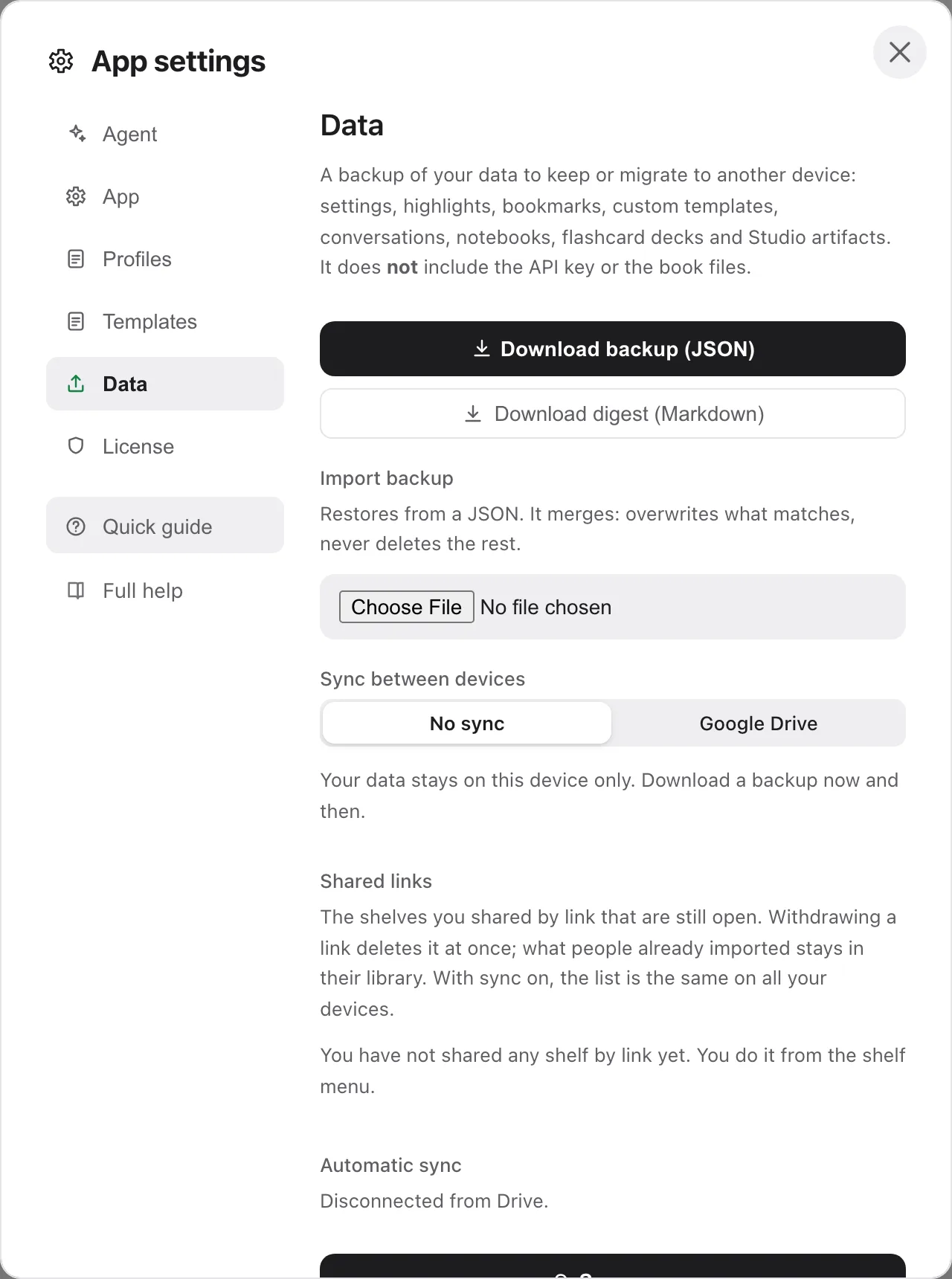
- Settings → Data.
- Under Sync between devices, pick Google Drive.
- Connect Google Drive and authorise.
- Decide whether to sync book files too. Without this, the other device shows the details and notes, but you must download the book to read it.
- Save to Drive.
From then on sync is automatic. The same panel has Restore from Drive, Version history and the space left.
Over 50 MB
A book over 50 MB is not uploaded automatically. You request it from the book menu on the other device.
Backup: one file with everything of yours
Settings → Data → Download backup (JSON). It includes settings, highlights, bookmarks, custom templates, conversations, notebooks, decks, exercises and Studio artifacts.
It does not include the API key or the book files. The key stays on the device on purpose: a backup you share should not carry your credentials.
Import backup merges: it overwrites what matches and does not delete what is left over. Restoring an old backup does not remove what you did afterwards.
If something disappears
Do not touch anything yet, and in this order:
- Download a backup before anything else.
- Look in the other browser, profile or origin. Browser storage is per browser and per profile; two copies of the app can hold different libraries.
- Do not press "Clean orphan entries". It is meant for records without a file, and in the middle of a scare it is easy to make things worse.
- If the book is in Drive, check the sync panel's Version history: it keeps copies of the book file.
- If none of that explains it, write to me before uploading anything again: re-uploading a different file creates a new book and does not recover the old annotations.
BookReader has no telemetry: there is no central record of your library to look at. What exists, and what a diagnosis uses, is what stays on your device and in your Drive.
Next step
- Connect an AI agent, if you have Plus.
- What happens to your data.
- Sync and storage, if you are after a ceiling or a number.